Mathematica Guide 1
Mathematica Guide 1
Getting Started
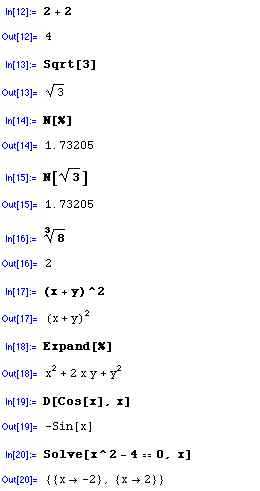
Shown to the left is an image of a window from a Mathematica session. We'll explain the Input (what you type in) and the Output.
2+2To execute this simple command type 2+2 followed by Return while holding the Shift key. This is the way you enter commands. Just typing Return takes you to the next line without executing the command.
When you first start up the Mathematica application the first command you enter will take a little time (tens of seconds) to execute - this is because Mathematica needs to load its Kernel. After the first execution subsequent commands are processed quickly.
Sqrt[3]The first command is to find the square root of 3. Note the syntax. All built-in functions in Mathematica start with a capital letter (Mathematica syntax is case sensitive) and the arguments of function are contained in square brackets [ ] NOT parentheses ( ).
N[%]
This tells Mathematica to evaluate the previous output (indicated by %) as a decimal number.
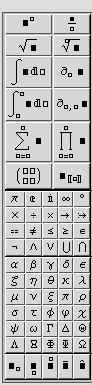
You can also enter commands using the Basic Input Palette (see below) or other palettes.
Other examples of commands follow. Mathematica has an extensive online Help for all built-in funcstions with examples.
Mathematica can work with numbers or symbols.
D[f[x],x]This finds the derivative of f[x] with respect to x.
Solve[f[x]==0,x]This finds the roots with respect to x - very useful. You can also solve simultaneous equations.
This is the Basic Input Palette
To open this window go to the main menu item File and then select Palettes then Basic Input or:
File -> Palettes -> Basic Input
Manipulating Vectors
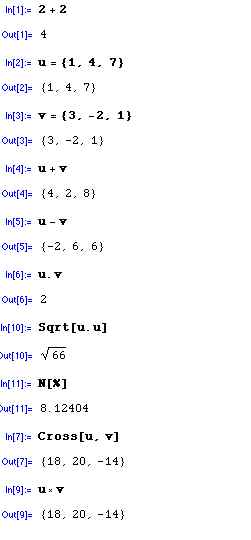
First we define vectors u and v using the curly brackets to specify the x, y and z components of the vectors.
Verify that the vector defined as the sum: u+v makes sense - check the output.
Similarly for the difference of the two vectors.
The syntax for the dot product of two vectors is u.v where a period comes between the two vectors.
The magnitude of a vector is just the square root of the dot product of a vector with itself.
The cross-product can also be found.
You can indicated cross product by using the Mathematica function Cross[u,v] or you can use the small x on the Basic Input Palette
2-D Plots and Defining Functions
Two-dimensional Plots and Defining Functions
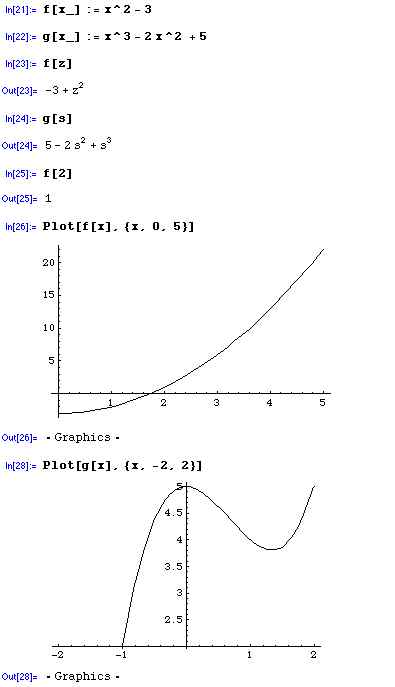
In the first lines of this session we define two functions we call f[x] and g[x]. The syntax is such that on the RHS of the function definition the variable of the function, x in this case, is followed with the underscore (type the - key while holding the Shift key).
Also in the definition note that instead of just an equal sign we use a colon followed by an equal sign.
After defining the functions we asked Mathematica to tell us what f[z] and g[s] are - just to verify that the functions were entered correctly.
Once defined, you can use your functions just like Mathematica uses its internal functions.
Now we plot the functions.
The syntax for the Plot command is
Plot[f[x],{x,xmin,xmax}]- plot function f[x] from x=xmin to x=xmax.
There are many other attributes you can use with the Plot function - to put a box around the plot, add labels, plot multiple functions on the same plot, etc.. Use the Help menu to explore the options for the Plot command.